Setting up Parrot OS+VPN on Kasm With A Browser That Works!

Okay, so this is more for my own records than anyone else I suppose. I love Kasm - it's a great tool! But if you want to do some things which would on a hardware setup would be simple, it can get pretty complex.
Rewinding slightly, I had found myself running into a persistent issue when using Burpsuite on Kali when running it as a Kasm container and coming into contact with Cloudflare blocking my progress. Burpsuite and Cloudflare themselves have admitted as much (and the reasons for this are, well, obvious I guess) and that there's very little they can do. There are certainly workarounds you can use such as using match/replace for your user-agent, but for my specific setup none of them worked. In fairness to Kasm, a lot of my issues were solved by uninstalling and re-installing Kasm on my VPS. But there are many issues if you want to run the Kali/Burpsuite/NordVPN/Kasm/Browser combo 😩
So, first thing is to get rid of Burpsuite. Once those shockwaves have subsided, get rid of Kali. No, wait, come back....
I've flirted with Parrot quite a bit in the past, mostly via using Hackthebox pwnboxes (if you've no idea what this and like the idea of hacking LEGALLY go look it up - it's fun!) and had a pretty good experience. It's really not so different on the surface to Kali. The main difference is that Parrot is a bit more lightweight which is fine by me. Do you really need all those tools anyway?
Enough life story, if you've made it this far you don't need the sales pitch.
First install the latest Kasm on your VPS which thankfully these days is super easy.
cd /tmp
curl -O https://kasm-static-content.s3.amazonaws.com/kasm_release_1.16.1.98d6fa.tar.gz
tar -xf kasm_release_1.16.1.98d6fa.tar.gz
sudo bash kasm_release/install.sh
This'll take a bit but after the script has run take note of the login details that are printed out in your terminal and use them to login. . Then go the Workspaces tab on the left and hit the Registry link and install the Parrot OS.
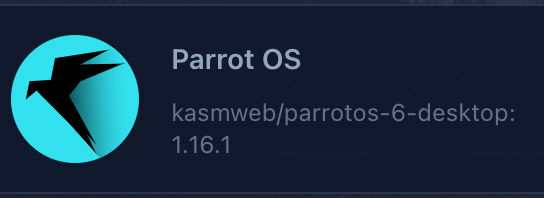
Once that's installed you might want to go to your Workspaces at the top of the page and fire up your new Parrot box just to check all is tickety-boo. If so, let's set up our VPN and set our selves up as root user so we can install packages if need be.
I've used NordVPN but if you're using others then I recommend following the docs for VPN sidecar installations.
Setting Up The VPN
Ssh into your VPS which is running Kasm and run the following commands.
docker network create \
  --driver=bridge \
  --opt icc=true \
  --subnet=172.20.0.0/16 \
  vpn-1
Then you can spin up a VPN container. Change the USER and the PASS to your NordVPN username and password.
docker run -d \
  --cap-add NET_ADMIN \
  --cap-add NET_RAW \
  --name nord-vpn \
  --net vpn-1 \
  --ip 172.20.0.2 \
  -e USER=YOURUSERNAME \
  -e PASS='YOURPASSWORD' \
  -e TECHNOLOGY=NordLynx \
  --restart unless-stopped \
  ghcr.io/bubuntux/nordvpn
Now if you go back to your Kasm Workspace Admin tab and hit Workspaces, click the arrow on the right hand side of you Parrot box.

Now add the following JSON to the Docker Run Config Overide box...
  "dns": [
    "8.8.8.8",
    "8.8.4.4"
  ]
...and the following in the Docker Exec Config.
{
  "first_launch": {
    "user": "root",
    "privileged": true,
    "cmd": "bash -c 'ip route delete default && ip route add default via 172.20.0.2'"
  }
}
Finally, make sure the Restrict Image To Docker Network and select the VPN connection we created earlier.
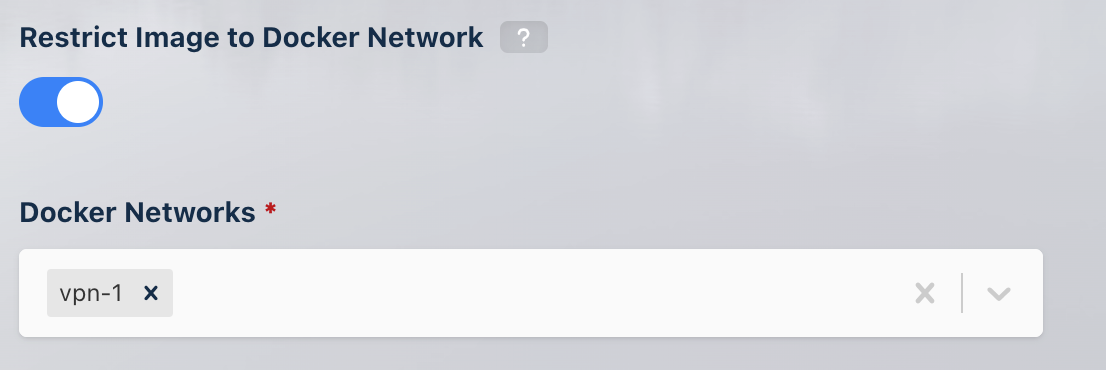
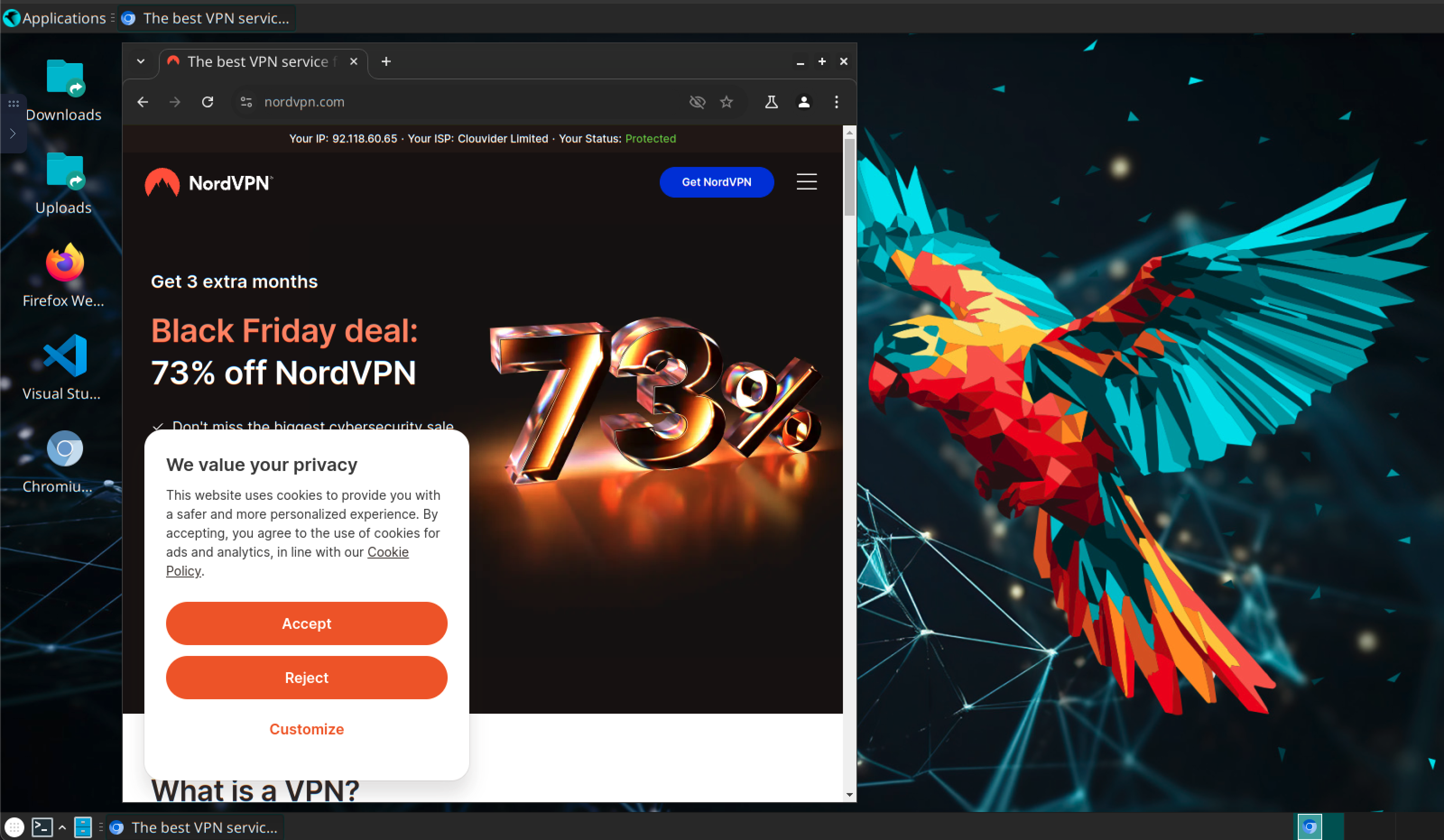
Now if you go back to the Workspaces tab at the top and launch your Parrot instance again everything should load as per normal with one small difference. Launch Chromium (note: you can do this now you're using Parrot. I'm still unsure why the Kasm Kali box doesn't let you) and go to the NordVPN website. You should see at the top of the screen that your IP is registered as 'Protected'.
Now for installing Caido. Caido is essentially an alternative to Burpsuite, but I've found that it get's blocked by services like Cloudflare far less regularly. There's a few other benefits too but I'll leave that up to the reader to go down the rabbit hole on that. For now, just go to the Caido website and register an account here .
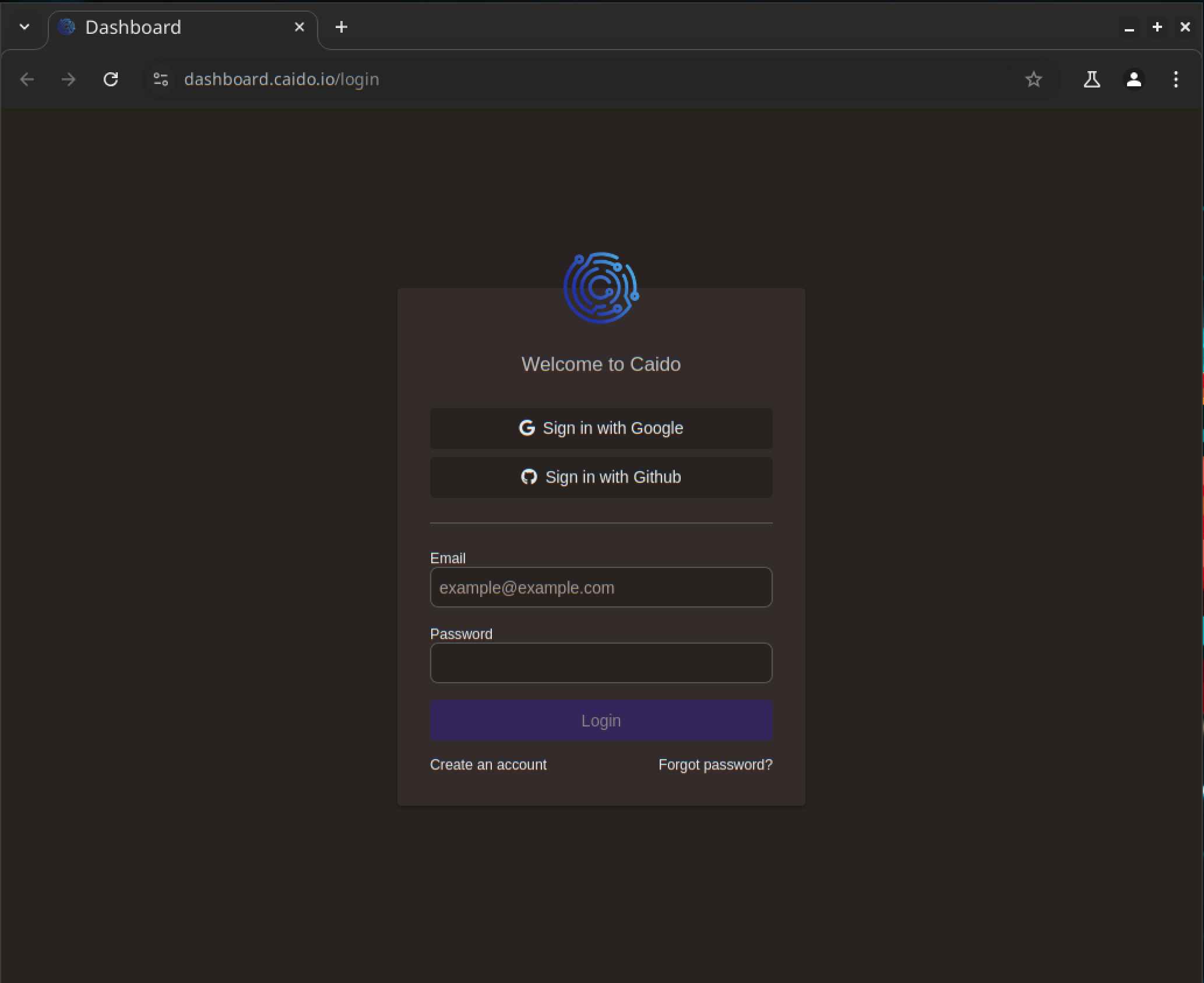
Notice that you'll have to login before downloading as the public download doesn't work. At least, it didn't for me. Once you're logged in, go to the installer instructions and download the correct installer package for your OS. If you've got this far and followed along then this will likely be Linux Desktop x86_64 (Deb) , but just in case you want to make sure go to your terminal and type uname -a and you'll see what architecture you're running.
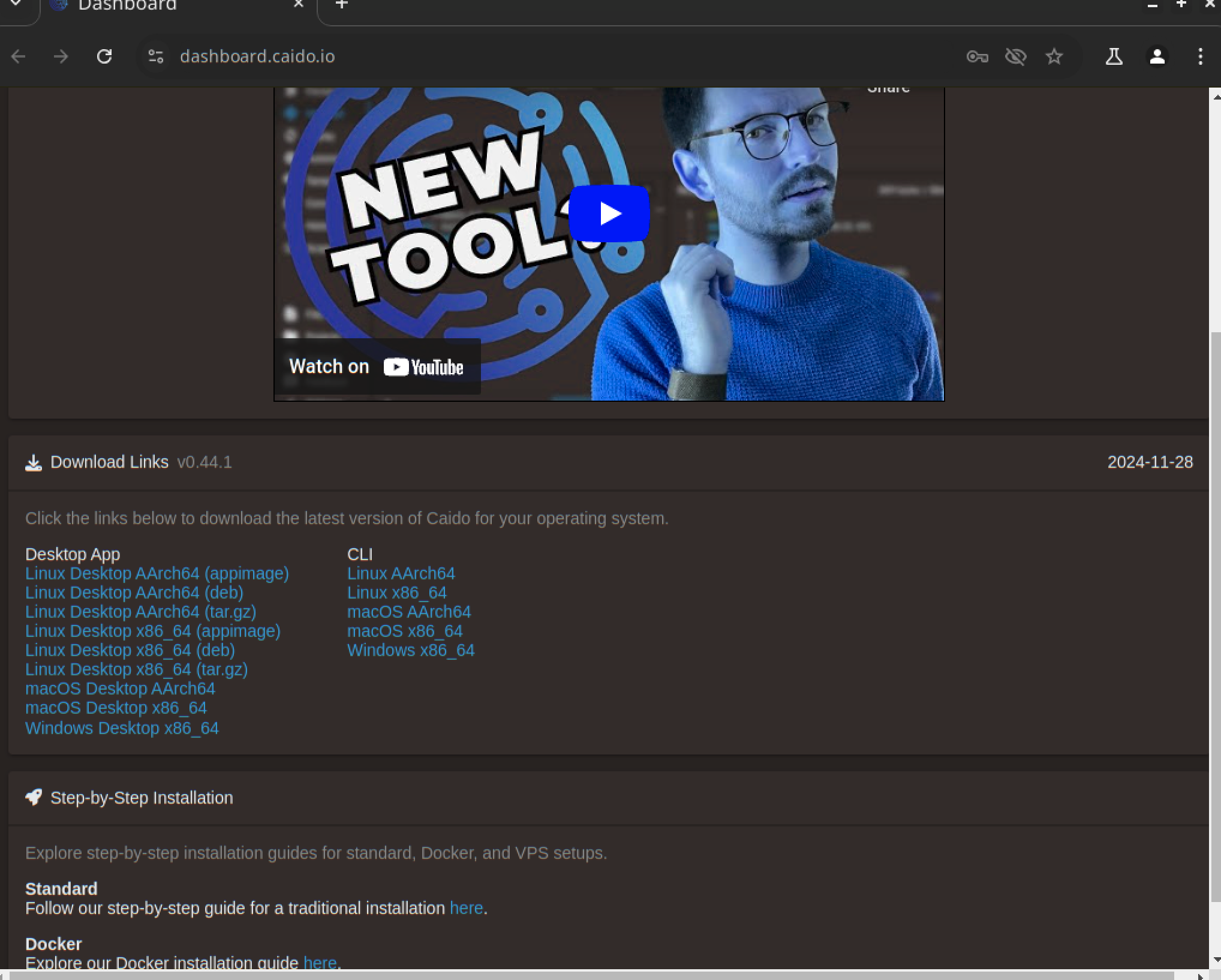
Once that's downloaded use the following command to install (be sure to alter the path to wherever directory you saved it in).
sudo dpkg -i <path_to_the_file>/caido-desktop-v0.44.1-linux-x86_64.debThen simply run caido in the terminal to launch! N.B. if you're running as root you may need to run caido --no-sandbox .
As I mentioned at the start of this post, this is likely not going to be useful for anyone other than myself. Nonetheless, hope this has helped someone get somewhere either using Kasm, Parrot or Caido. Cheers 😉